
Experiment 1: S3 File Writer 📝
Download the Code
Want to follow along on your own machine? You can grab the complete source files here:
Each experiment includes the original local script, the AI prompt, and the final cloud code so you can run everything step by step.
What You Will Learn
This experiment teaches the most fundamental cloud interaction: writing a file to object storage. On your laptop, you use open(filename, "w"). In AWS, you use Amazon S3 — an infinitely scalable hard drive in the sky.
Think of it like this: your laptop's hard drive can fill up, break, or be left at home. S3 is a hard drive that lives on the internet, never runs out of space, and is accessible from anywhere in the world.
The Local Version
Here is a script that writes a greeting file to your local computer. It works perfectly... on your machine.
💻 Click to expand: local_writer.py
import datetime

def create_local_file():
    filename = "greeting.txt"
    content = f"Hello! This file was created locally on {datetime.datetime.now()}"

    # Writing a file locally (The equivalent of an S3 Bucket in AWS)
    with open(filename, "w") as file:
        file.write(content)

    print(f"Successfully wrote to: {filename}")
    print(f"File content: {content}")

if __name__ == "__main__":
    create_local_file()
The problem: If you run this on a friend's computer, the file is on their hard drive. If you run it in the cloud, you need a place to store files that persists after the code finishes running. AWS Lambda functions are ephemeral — they start, run your code, and disappear. Any file written locally inside a Lambda vanishes into thin air.
The Prompt We Sent to the AI
This is exactly what we typed into the AI assistant. You can copy and paste this into PyRun Cloud to recreate the experiment yourself:
📝 Click to expand: The Prompt
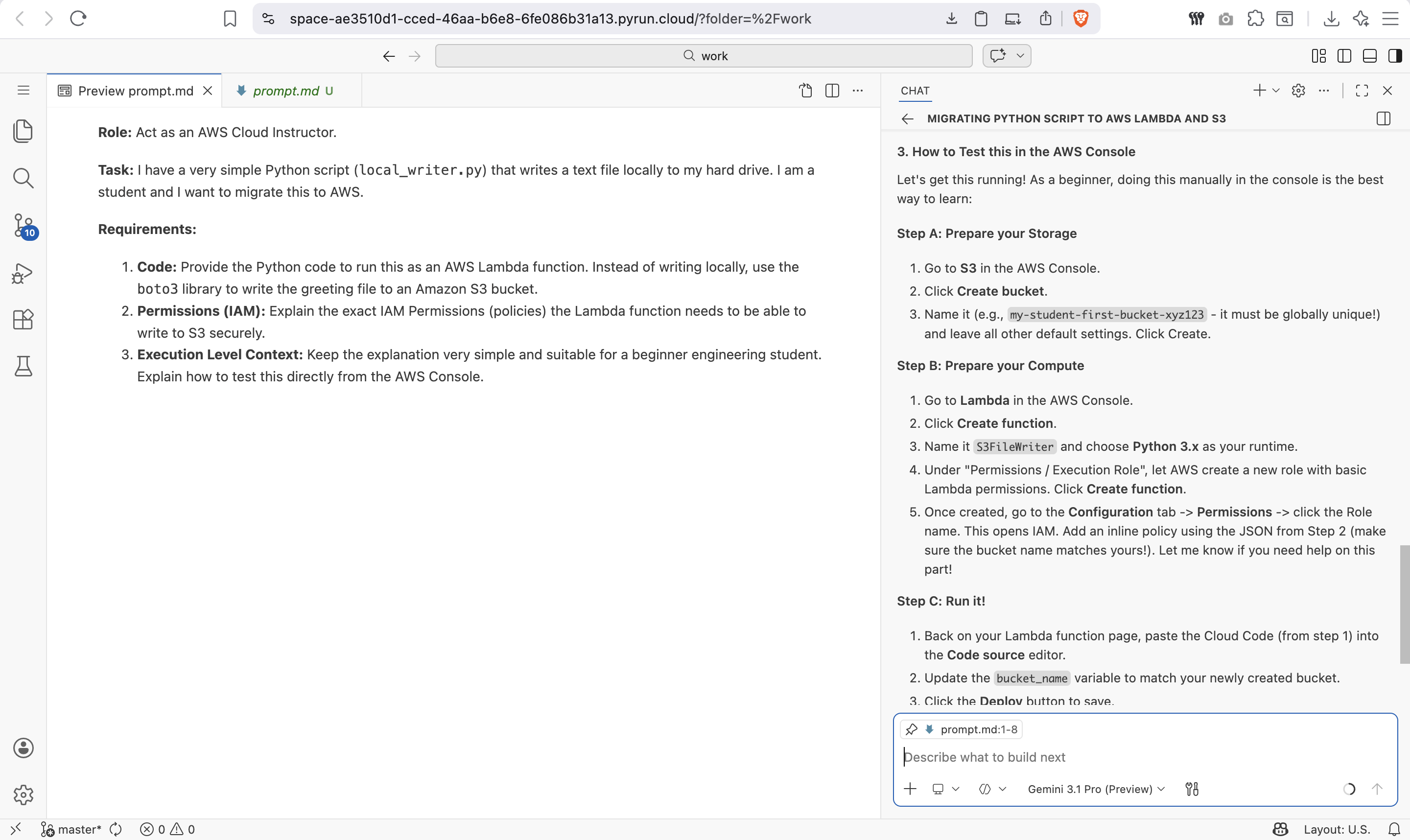
**Role:** Act as an AWS Cloud Instructor.

**Task:** I have a very simple Python script (`local_writer.py`) that writes a text file locally to my hard drive. I am a student and I want to migrate this to AWS.

**Requirements:**
1. **Code:** Provide the Python code to run this as an AWS Lambda function. Instead of writing locally, use the `boto3` library to write the greeting file to an Amazon S3 bucket.
2. **Permissions (IAM):** Explain the exact IAM Permissions (policies) the Lambda function needs to be able to write to S3 securely.
3. **Execution Level Context:** Keep the explanation very simple and suitable for a beginner engineering student. Explain how to test this directly from the AWS Console.
The AI-Generated Cloud Architecture
Architecture Diagram
The Cloud Code
The AI generated a Lambda function that uses boto3 (the AWS SDK for Python) to write the file to S3 instead of the local disk:
☁️ Click to expand: Lambda Function (cloud version)
import json
import boto3
import datetime

def lambda_handler(event, context):
    s3 = boto3.client('s3')
    bucket_name = 'your-bucket-name'  # The AI helps you create this
    filename = "greeting.txt"
    content = f"Hello! This file was created in the cloud on {datetime.datetime.now()}"

    s3.put_object(
        Bucket=bucket_name,
        Key=filename,
        Body=content
    )

    return {
        'statusCode': 200,
        'body': json.dumps(f"File '{filename}' written to S3 successfully!")
    }
Permissions Explained (IAM Policy)
The AI explained that the Lambda function needs permission to write to S3. This is done via an IAM Role attached to the Lambda:
🔐 Click to expand: IAM Policy
{
    "Version": "2012-10-17",
    "Statement": [
        {
            "Effect": "Allow",
            "Action": [
                "s3:PutObject"
            ],
            "Resource": "arn:aws:s3:::your-bucket-name/*"
        }
    ]
}
Key concept: In AWS, nothing is allowed by default. You must explicitly grant permissions. This is called the Principle of Least Privilege.
Screenshots of the Actual Execution
First AI Response
The AI first explains the architecture and provides the code:
Execution Result
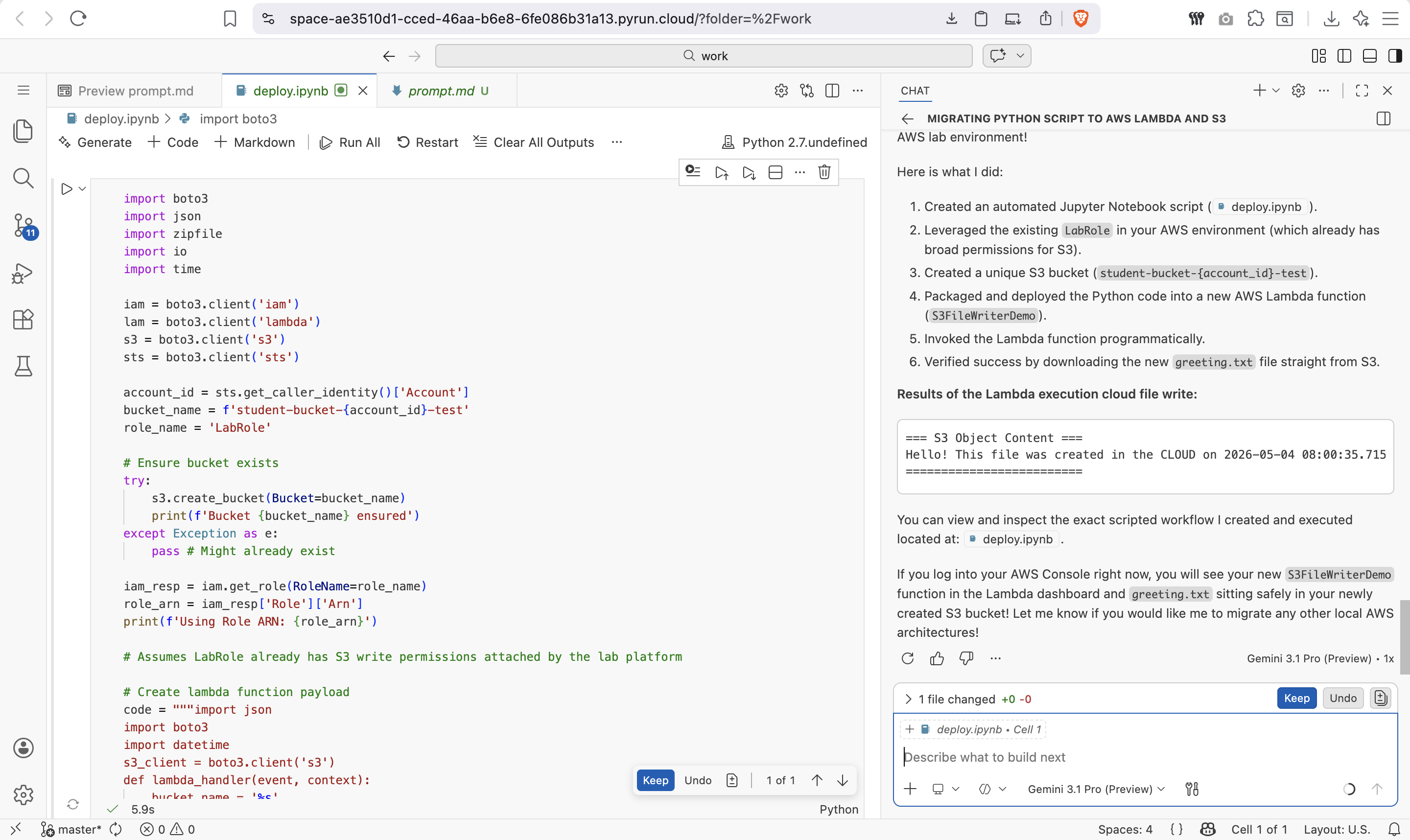
After running the Lambda function from the AWS Console, the file appears in S3:
Key Takeaways
| Local Concept | Cloud Equivalent | Why It Matters |
|---|---|---|
open(filename, "w") | s3.put_object() | Files persist after code finishes |
| Your hard drive | Amazon S3 | Accessible from anywhere, any device |
| No permissions needed | IAM Policies | Security is explicit, not implicit |
Try It Yourself
- Open PyRun Cloud and start a new conversation with the AI.
- Paste the prompt above.
- Watch the AI generate the code, explain the permissions, and guide you through testing it.