
Experiment 5: Serverless Stock Pipeline 📈
Download the Code
Want to follow along on your own machine? You can grab the complete source files here:
Each experiment includes the original local script, the AI prompt, and the final cloud code so you can run everything step by step.
What You Will Learn
This experiment teaches you how to build a serverless data pipeline on AWS. You start with a simple local Python script that reads a text file and stores data in JSON, and end with a cloud architecture where your laptop invokes a cloud function, and a Lambda function processes the data automatically into a cloud database.
By the end, you will understand how two AWS services work together like an assembly line:
- Lambda processes each record automatically when invoked (the robot arm)
- DynamoDB stores the final results permanently (the warehouse)
The best part? No servers to manage. You run a small producer script from your own machine (or from PyRun Cloud), and AWS handles the rest.
The Local Version
You have two files on your laptop. Together, they simulate a pipeline that reads stock data and stores it in a local database.
local_pipeline.py — The Pipeline
A Python script that simulates the full flow using a JSON file:
💻 Click to expand: local_pipeline.py
import json
import os

# Simulating a local "database" (like DynamoDB)
DB_FILE = "products_db.json"

def init_db():
    if not os.path.exists(DB_FILE):
        with open(DB_FILE, "w") as f:
            json.dump({}, f)

def read_stocks_file(filepath="stocks.txt"):
    """Reads the stocks file and returns a list of stock records."""
    stocks = []
    with open(filepath, "r") as f:
        for line in f:
            line = line.strip()
            if line:
                symbol, name, price, sector = line.split(",")
                stocks.append({
                    "symbol": symbol,
                    "name": name,
                    "price": float(price),
                    "sector": sector
                })
    return stocks

def process_product(stock):
    """Simulates the Lambda function processing a product."""
    print(f"⚙️  Processing: {stock['symbol']} ({stock['name']})")

    # Simulating DynamoDB write
    with open(DB_FILE, "r") as f:
        db = json.load(f)

    db[stock["symbol"]] = stock

    with open(DB_FILE, "w") as f:
        json.dump(db, f, indent=2)

    print(f"✅ Stored {stock['symbol']} in local DB")

def run_pipeline():
    """Runs the full local pipeline."""
    init_db()

    # Process stocks
    print("=" * 50)
    print("PROCESSING STOCKS")
    print("=" * 50)
    stocks = read_stocks_file()
    for stock in stocks:
        process_product(stock)

    print("\n" + "=" * 50)
    print("PIPELINE COMPLETE")
    print("=" * 50)
    with open(DB_FILE, "r") as f:
        final_db = json.load(f)
    print(f"Total products in DB: {len(final_db)}")

if __name__ == "__main__":
    run_pipeline()
stocks.txt — The Raw Data
A plain text file with stock information, one record per line:
📄 Click to expand: stocks.txt
AAPL,Apple Inc.,150.25,Technology
MSFT,Microsoft Corporation,250.50,Technology
AMZN,Amazon.com Inc.,3200.00,Consumer Cyclical
GOOGL,Alphabet Inc.,2800.75,Communication Services
TSLA,Tesla Inc.,750.00,Consumer Cyclical
JNJ,Johnson & Johnson,165.30,Healthcare
JPM,JPMorgan Chase & Co.,155.80,Financial Services
V,Visa Inc.,220.40,Financial Services
PG,Procter & Gamble Co.,140.60,Consumer Defensive
UNH,UnitedHealth Group Inc.,420.15,Healthcare
The problem: This only works on your laptop. If the file has 1 million lines, your script might be too slow. If you want to process new stocks every hour, you would need to keep your computer running forever. And if two scripts try to write to products_db.json at the same time, data gets corrupted. The cloud solves all of this.
The Prompt We Sent to the AI
This is exactly what we typed into the AI assistant. You can copy and paste this into PyRun Cloud to recreate the experiment yourself:
📝 Click to expand: The Prompt
**Role**: Act as a Principal Cloud Architect and AWS Mentor.

**Task**: I am a computer engineering student learning about Cloud Computing. I have a local pipeline (`local_pipeline.py`) that simulates a stock processing system using a JSON file. My goal is to migrate this to a serverless architecture on AWS — **without using EC2**.

**Requirements**:

1. **AWS Lambda (Processor)**:
- Create a Lambda function named `ProcessProduct`.
- The Lambda must parse each incoming payload, extract the stock data (symbol, name, price, sector), and insert it into the DynamoDB table.
- Implement basic error handling.

2. **Amazon DynamoDB (Database)**:
- Create a DynamoDB table named `ProductDB` with `symbol` as the Partition Key (String type).
- Ensure the table uses on-demand capacity for simplicity.

3. **Local Producer Script**:
- Provide a small Python script named `send_to_cloud.py` that I can run directly from my laptop (or from the PyRun Cloud workspace).
- The script must read `stocks.txt` line by line and invoke the Lambda function directly for each record using `boto3`.
- It should print a confirmation for each message sent.

4. **Security & IAM**:
- The Lambda function needs an IAM policy allowing `dynamodb:PutItem` to the `ProductDB` table.
- Ensure my user / execution environment has permission to invoke the `ProcessProduct` Lambda function.
- Follow the Principle of Least Privilege.

5. **Execution Protocol (MCP)**:
- Use the Model Context Protocol (MCP) and your available AWS tools to provision these resources automatically.
- Create the Lambda, create the DynamoDB table, and wire everything together without requiring me to install AWS CLI or configure credentials manually.

**Output**:
Once deployment is complete, provide me with:
- A brief bulleted summary of the 2 AWS components you created and how they connect.
- The exact Lambda function name so I can use it in the producer script.
- The complete `send_to_cloud.py` producer script ready to run.
- Instructions on how to verify the pipeline works (e.g., run the producer, check CloudWatch Logs for Lambda, scan the DynamoDB table).
- Instructions on how to run this and add and process new data.
- An explanation suitable for a student of how serverless architecture works and why we use Lambda for processing.
The AI-Generated Cloud Architecture
Architecture Diagram
What Changed?
| Local Component | Cloud Component | Why |
|---|---|---|
| Local JSON file | DynamoDB Table | Millisecond access, no file corruption |
| Script processing on laptop | Lambda | Auto-scales, pay only for usage, no server management |
| Single-threaded loop | Cloud Invocations | Can handle many requests concurrently in the cloud |
The Cloud Producer Code (Run Locally)
The AI generates a small Python script that you run from your own machine. It reads the file and sends each record to the Lambda function:
☁️ Click to expand: send_to_cloud.py
import json
import boto3

lambda_client = boto3.client('lambda')
FUNCTION_NAME = 'ProcessProduct'

def read_and_send(filepath='stocks.txt'):
    with open(filepath, 'r') as f:
        for line in f:
            line = line.strip()
            if not line:
                continue
            symbol, name, price, sector = line.split(',')
            payload = {
                'symbol': symbol,
                'name': name,
                'price': float(price),
                'sector': sector
            }
            lambda_client.invoke(
                FunctionName=FUNCTION_NAME,
                InvocationType='Event', # Asynchronous invocation
                Payload=json.dumps(payload)
            )
            print(f"Sent: {symbol}")

if __name__ == '__main__':
    read_and_send()
The Cloud Consumer Code (Lambda)
The AI converted the processing loop into a Lambda handler:
☁️ Click to expand: Lambda Function (cloud version)
import json
import boto3

dynamodb = boto3.resource('dynamodb')
table = dynamodb.Table('ProductDB')

def lambda_handler(event, context):
    try:
        symbol = event.get('symbol')
        name = event.get('name')
        price = event.get('price')
        sector = event.get('sector')

        if not symbol:
            print(f"Skipping record without symbol: {event}")
            return {'statusCode': 400, 'body': 'Missing symbol'}

        # Store in DynamoDB
        table.put_item(Item={
            'symbol': symbol,
            'name': name,
            'price': str(price),
            'sector': sector
        })

        print(f"Stored product: {symbol}")
        return {
            'statusCode': 200,
            'body': json.dumps({'message': f'Successfully processed {symbol}'})
        }

    except Exception as e:
        print(f"Error processing record: {e}")
        return {
            'statusCode': 500,
            'body': json.dumps({'error': str(e)})
        }
Data Flow Explained
When you run the producer script, here is what happens behind the scenes:
- Your laptop reads one line from
stocks.txtand callslambda_client.invoke(). - AWS Lambda receives the payload, parses the data, and calls
dynamodb.put_item(). - DynamoDB stores the item permanently.
- The cloud handles the execution seamlessly as each record is sent.
All of this happens without you managing any servers.
Screenshots of the Actual Execution
Final Cloud Implementation
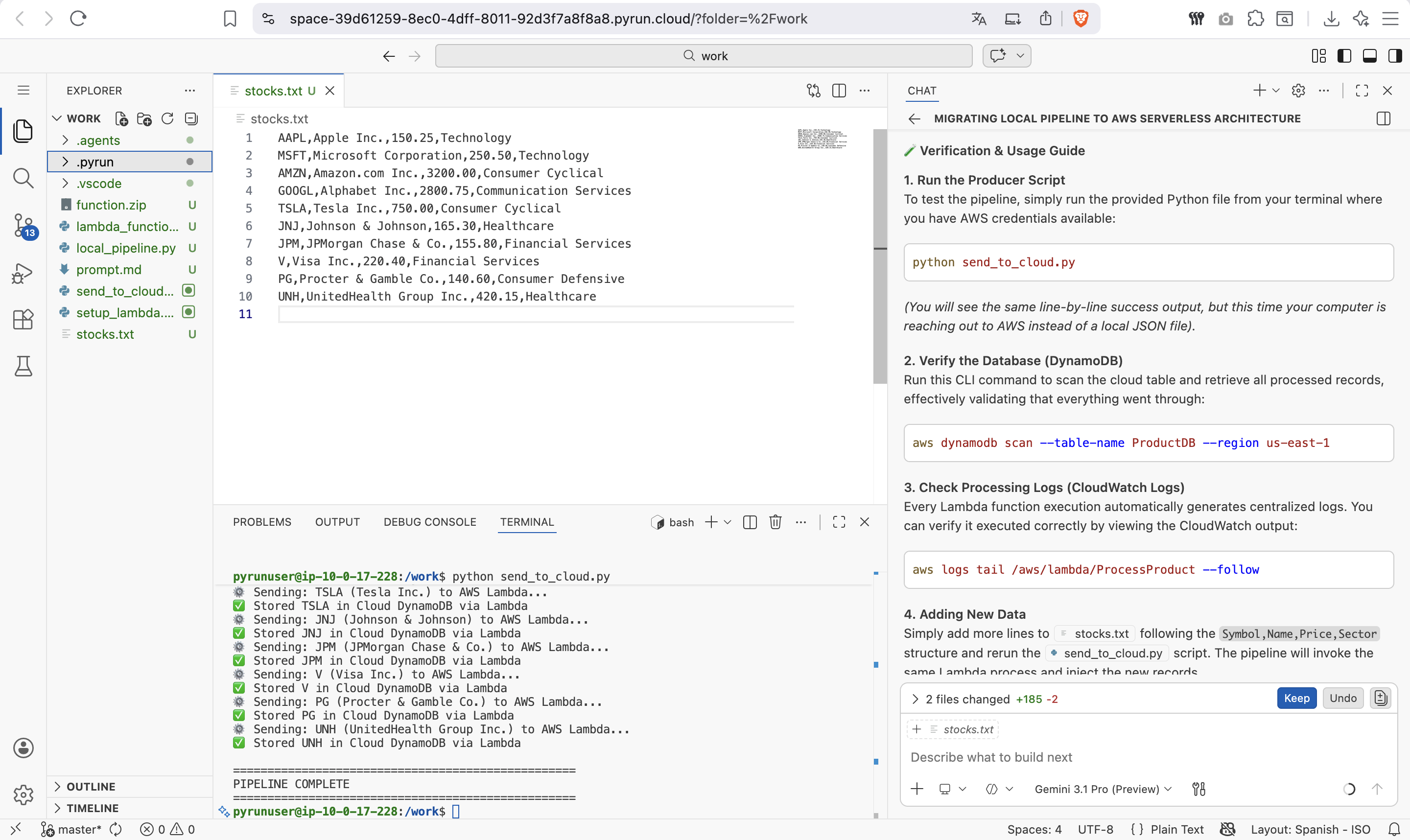
The AI then provisions both AWS services and provides the Lambda function name:
Pipeline Verification
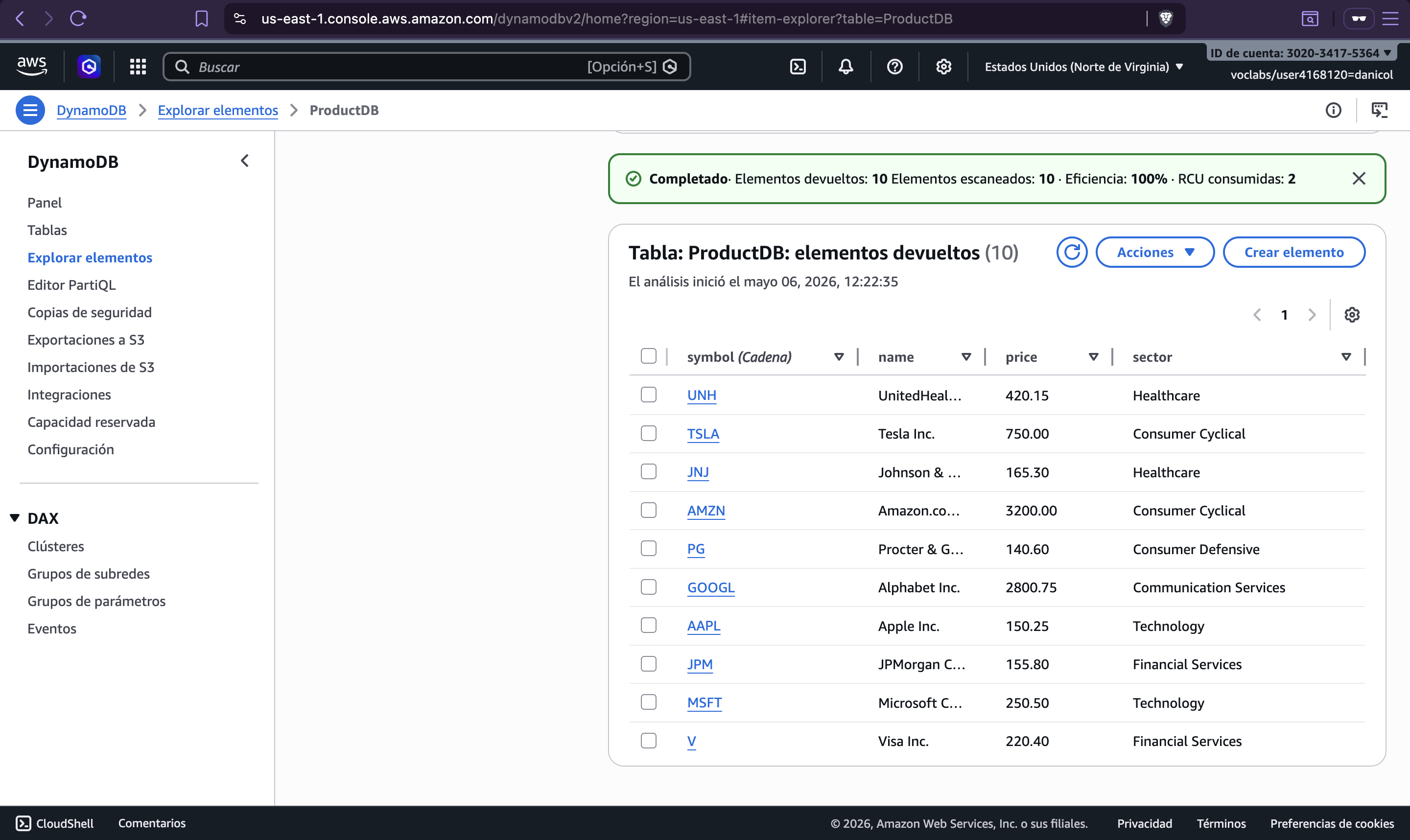
You can scan the DynamoDB table to confirm all 10 stocks were inserted:
Key Takeaways
| Concept | Local Way | Cloud Way | Benefit |
|---|---|---|---|
| Database | JSON file | DynamoDB | Handles millions of writes, no corruption |
| Compute | Your laptop | Lambda | Auto-scales, pay only for usage |
| Execution | Sequential loop | Concurrent cloud functions | Fast and scalable processing |
| Infrastructure | You manage everything | Serverless | No servers to provision or patch |
Try It Yourself
- Open PyRun Cloud and start a new conversation.
- Paste the prompt above.
- The AI will:
- Create a DynamoDB table named
ProductDB - Deploy the Lambda function to process records
- Give you a ready-to-run
send_to_cloud.pyscript - Configure all IAM policies securely
- Create a DynamoDB table named
- Run the producer script from your PyRun workspace or laptop.
- Watch CloudWatch Logs to see the Lambda processing records in real time.
- Scan the DynamoDB table to see your stocks safely stored in the cloud.